
Installation and setup
How do I set up the app for the first time?
- Install the Apps: Make sure you have installed CalendarBuddy on both your phone and your Wear OS watch from the Google Play Store.
After you install the app on your phone, go back to the app page on the Play store and click Install on more devices and then select your Watch - Grant Permission: Open the app on your phone. It will ask for permission to read your calendar. This is essential for the app to find your events. Simply tap "Grant Permission."
- Ensure all your calendar apps on your phone (Google calendar, Outlook calendar etc) are set to sync calendars to your device calendar. Your calendar app MUST support syncing calendars to your device calendar for CalendarBuddy to sync them.
You can find this in your calendar app settings and is usually named sync. For eg: For Outlook calendars, go to Settings > Calendar > Sync Calendars > (select calendars to sync) - Enable Sync: On the phone app, go to the "Settings" tab and turn on the "Enable Auto-Sync" switch. This will begin the first sync and set up a background process to keep your watch updated.
How do I add the event complication to my watch face?
Follow these steps:
- Long-press on your current watch face to enter the editor.
- Tap the "Edit" or "Customize" button (often a gear icon).
- Swipe to the "Complications" section.
- Tap on the complication slot where you want to add your events.
- Scroll through the list of providers and find "CalendarBuddy".
- You will see two options: Next Event (Shows the event start time and title, e.g., "10:30a Meeting") and Next Event (Title only) (Shows only the event title, e.g., "Meeting").
- Select the one you prefer
How do I add the phone widget
Follow these steps:
- Long-press on your home page on your phone and select widgets
- Look for the CalendarBuddy section.
- Press and hold the widget and drop it into an empty space on your home screen
- Resize the widget as you wish. The widget allows you to stack the events either horizontally or vertically by resizing it.
- All the settings in the settings page of the app apply to both the phone widget as well as the watch complication
Frequently Asked Questions
Do I need to install both the mobile app and the wear app?
Yes. The mobile app resides on your phone and periodically sync events to the wear app on your phone. The wear app powers the complication.
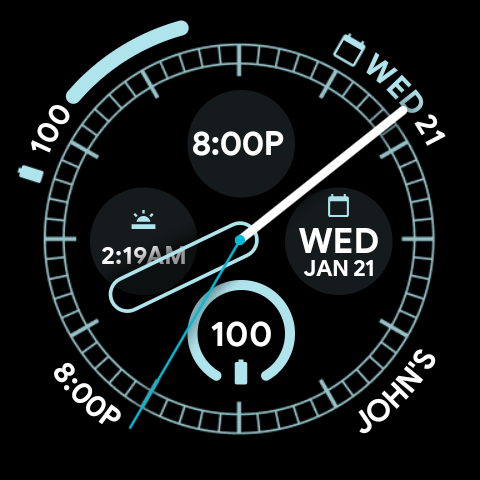
When I add the complication to my Pixel watch, it only shows the event time. The title is missing.
Android wear watch faces determine the amount of text that can be displayed on a complication. For text complications, such as the next event complication, watch faces can support short text or long text complications. Most of the default watch faces on Pixel watches only support short text complications. This means that the length of the text can only be a certain number of characters (6 characters for Pixel watch faces). This is not long enough to show the time and the title of the next event. Due to this limitation, we chose to show only the time.
We recommend finding a watch face from the Play store that supports long text. The complication will automatically show both the time and title on such watch faces.
As a work around, we provide a complication named Next Event+ (Title) which shows the first 6 characters of the title. With this, you can add two complications to the watch face, one of type Next Event and one of type Next Event (Title only) to view both time and title on the watch face. The image below shows how this will look:
Why does the app need calendar permission?
The app's main purpose is to read your phone's calendar and display your events. Without this permission, it cannot access any event information and will not be able to function. The app only reads event data to sync with the watch; we never store, share, or modify it.
I denied the permission by mistake. How can I grant it now?
Open the "Events" tab on the phone app, you will see a "Grant Permission" button. Tap it to bring up the permission prompt again. If you don't see the prompt (because you selected "Don't ask again"), the screen will show an "Open Settings" button instead. This will take you directly to the app's system settings, where you can manually grant the Calendar permission.
How do I choose which calendars to sync?
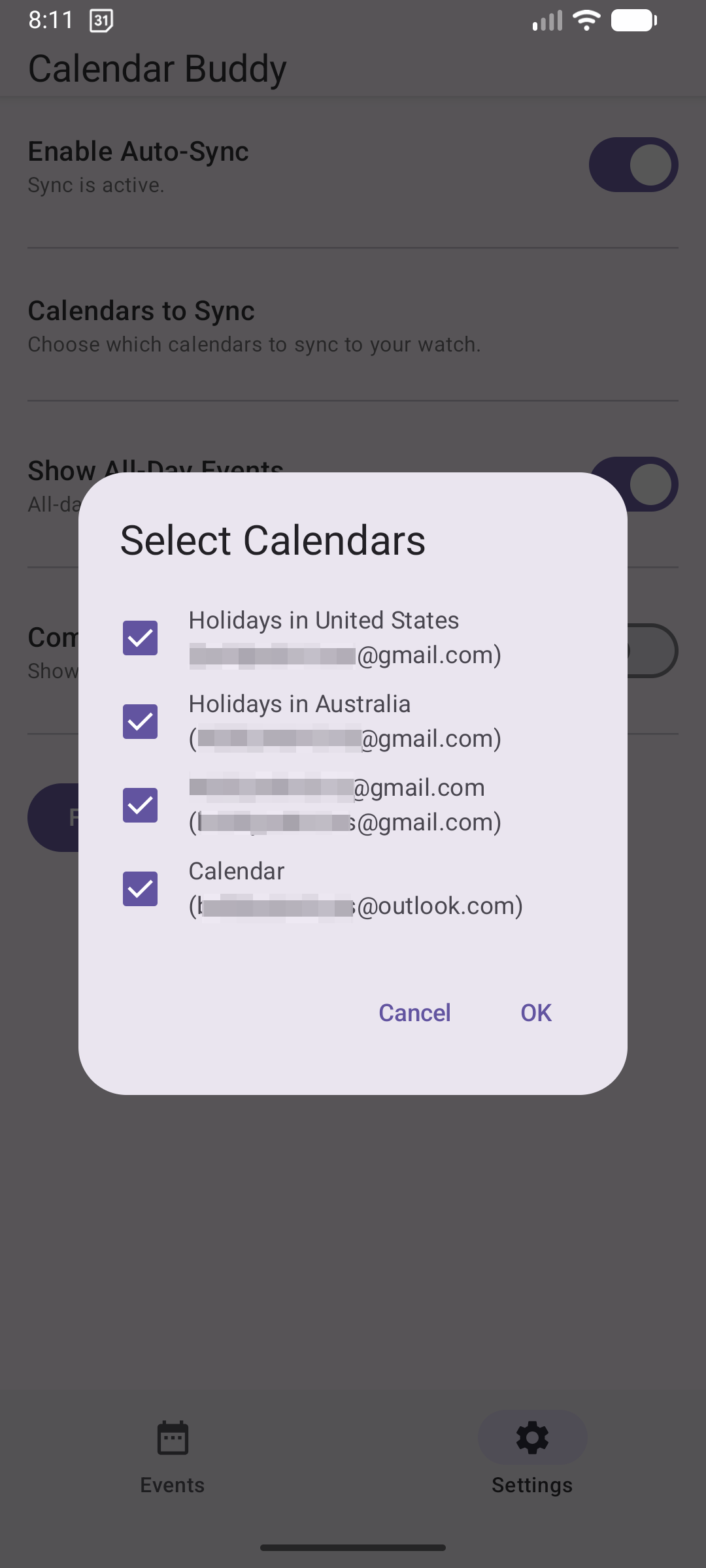
In the phone app, go to the Settings tab and tap on "Calendars to Sync". A dialog will appear showing all the calendars on your device. Simply check the boxes for the calendars you want to see on your watch and tap "OK."
I don't want to see "All-day" events. Can I hide them?
Yes. In the Settings tab on your phone, you can turn off the "Show All-Day Events" switch. This will hide them from both the phone app and the watch complication.
What does the "Today Only" setting do?
This setting controls which events appear on your watch face complication.
Enabled (On): The complication will only show upcoming events for the rest of the day.
Disabled (Off): The complication will show the next upcoming event, even if the event occurs tomorrow or later.
The events on my watch seem out of date. How can I force a sync?
The app syncs automatically every 15 minutes and whenever a calendar event changes. If you need an immediate update, go to the Settings tab in the phone app and tap the "Force Sync" button.
My complication just shows "--" or a dash. What's wrong?
This usually means one of a few things: No Upcoming Events (You have no more events scheduled for the day if "Today Only" is on, or no future events in your selected calendars), Sync Hasn't Run (You just installed the app. Make sure you've enabled sync in the phone app and tapped "Force Sync" once), or No Calendars Selected (You haven't selected any calendars to sync in the phone app's settings).
The complication isn't updating. What should I do?
First, try the "Force Sync" button in the phone app. If that doesn't work, ensure your watch and phone are connected via Bluetooth. As a last resort, restarting both your watch and phone can often resolve connection issues.
Why does the event time on my watch show "11:24p" instead of "11:24 PM"?
This is a deliberate design choice to save space on character limited complications, making the complication cleaner and easier to read at a glance. "p" stands for PM and "a" stands for AM.
Why aren't my events syncing instantly? I added a new event and it's not on my watch.
This is the most common issue users experience, and it's related to how modern Android devices save battery.
To preserve battery life, your phone's operating system (Android) puts apps to sleep when they are not actively being used on screen. This is often called "Doze mode" or "App Standby." When an app like CalendarBuddy is put to sleep, it is temporarily prevented from running in the background, which delays the sync. CalendarBuddy is designed to sync automatically at regular intervals (every 15 minutes) and whenever your phone detects a change in your calendars. However, if your phone's battery optimization is very aggressive, it can delay or even block these updates.
This behavior varies greatly between phone manufacturers. Google Pixel & Stock Android devices have the most "standard" battery-saving features and usually allow apps like CalendarBuddy to work correctly. Samsung, OnePlus, Oppo, Xiaomi, and other manufacturers often add their own extra layers of aggressive battery optimization on top of standard Android. They prioritize battery life heavily, which means they are more likely to stop background tasks. Phones with Chinese ROMs (like many models from Xiaomi, Oppo, and OnePlus) are particularly known for this aggressive behavior.
Also see Don't kill my app!How can I improve the sync reliability on my phone?
You can tell your phone's operating system to stop optimizing CalendarBuddy. This will allow it to sync more reliably. The steps vary by manufacturer, but the setting is usually called "Battery Optimization," "Unrestricted," or "Allow background activity."
For Google Pixel Phones:
- Open Settings on your phone.
- Go to Apps > See all apps.
- Find and tap on CalendarBuddy.
- Tap on App battery usage.
- Select Unrestricted.
For Samsung Galaxy Phones:
- Open Settings on your phone.
- Go to Apps.
- Find and tap on CalendarBuddy.
- Tap on Battery.
- Select Unrestricted.
For OnePlus Phones:
- Open Settings on your phone.
- Go to Apps > App management.
- Find and tap on CalendarBuddy.
- Tap on Battery usage.
- Turn on the switch for Allow background activity.
- (Also recommended) Turn on the switch for Allow auto-launch.
For Oppo Phones:
- Open Settings on your phone.
- Go to Apps > App management.
- Find and tap on CalendarBuddy.
- Tap on Battery usage.
- Enable the toggle for Allow background activity.
- Also enable the toggle for Allow auto-launch to ensure the app works after a restart.
By setting the battery usage to "Unrestricted," you are giving CalendarBuddy a much better chance to sync events in a timely manner. Even with this setting, a sync might not be instant, but it will be significantly faster and more reliable. Remember, you can always get the latest events immediately by opening the CalendarBuddy app on your phone and tapping the "Force Sync" button.
Does CalendarBuddy track my data?
No. Your Calendar data stays on your devices and is never sent to the Cloud.
Support
If you need help, have feedback or would like to request a feature, email us at: